

Geek Bar Pulse X Screen Guide: Decoding the Star UI & Symbols
Geek Bar Pulse X Screen Guide: Decoding the Star UI & Symbols
The Geek Bar Pulse X 25K revolutionized disposable vapes with the world's first 3D Curved Screen. It’s not just for looks—this dashboard provides critical real-time data about your vaping session.
However, the cosmic-themed animations can be confusing. What does the rocket mean? Why are the stars moving fast? Here is your definitive guide to decoding every symbol.
⚡ Quick Symbol Legend
| Icon | Name | Meaning |
|---|---|---|
| 🚀 | Rocket Ship | Pulse Mode Active: High Power (20W), Max Flavor. |
| ✨ | Constellation | Regular Mode Active: Standard Power (12W), Max Puffs. |
| 💧 | Water Drop | E-Liquid Level: Displays remaining juice percentage. |
| 🔴 | Red Flash | Critical Warning: Battery is dead (0%) or empty juice. |
1. The Two Animation Modes Explained
The screen animation is directly tied to the airflow switch at the bottom of the device. It confirms which power mode you are currently using.
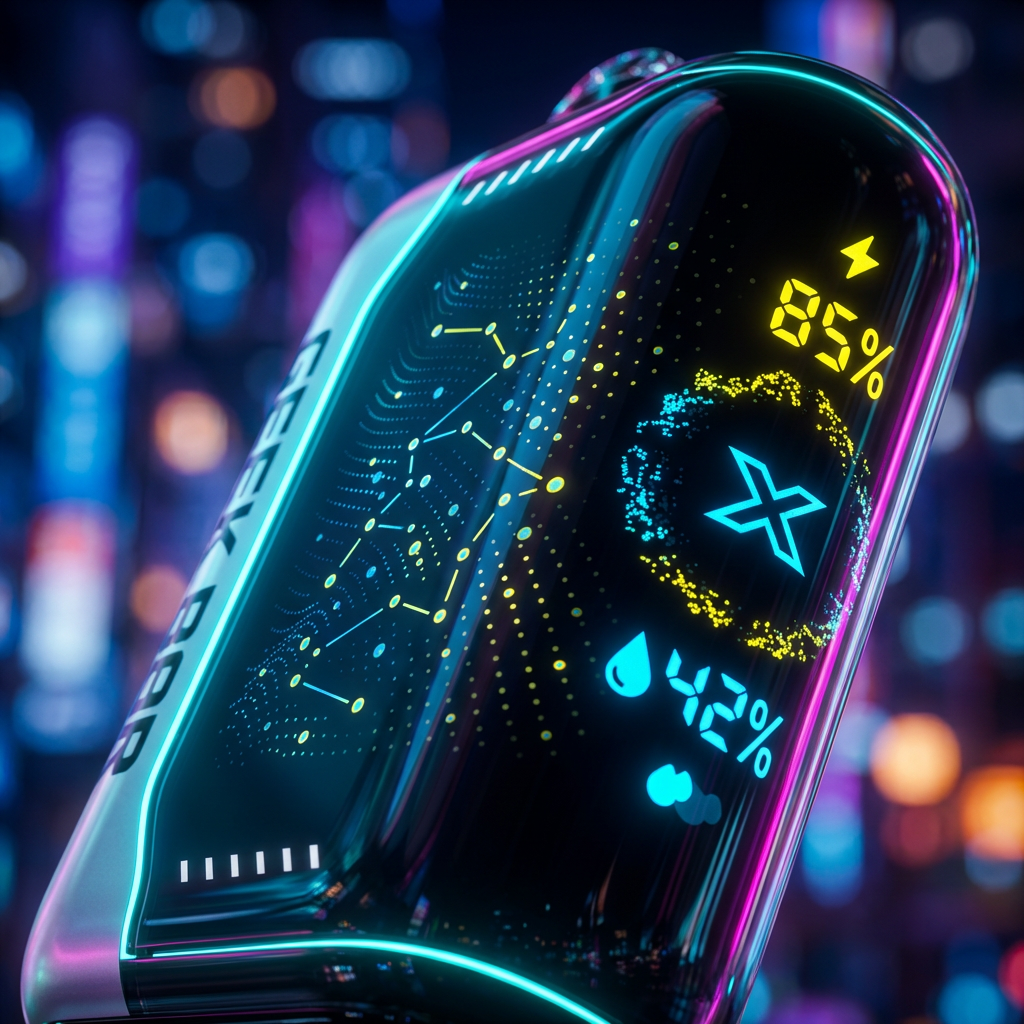
Option A: The Constellation (Regular Mode)
When the switch is set to Regular, you will see a slow-moving starry sky or constellation effect. This indicates:
- Power: ~12 Watts (Single Coil alternating).
- Performance: Smoother draw, cooler vapor.
- Benefit: Extends battery life and puff count to 25,000 puffs.
Option B: The Rocket Ship (Pulse Mode)
When the switch is set to Pulse, the animation transforms into a Rocket Ship blasting off with rapid "warp speed" stars. This indicates:
- Power: 20 Watts (Dual Mesh Coils active).
- Performance: 200% more vapor, warmer hit, intense flavor.
- Trade-off: Reduces puff count to roughly 15,000 puffs.
2. E-Liquid & Battery Monitoring
Unlike older disposables that used vague color codes (Green/Blue/Red), the Pulse X provides granular percentage data.
This percentage counts down from 100% to 0%. It tracks the 18mL reservoir.
- 100% - 15%: Optimal flavor and vapor.
- Below 5%: Flavor may begin to taste muted.
- 0%: The device is empty. Stop using it immediately to avoid inhaling burnt cotton (Dry Hit).
This tracks the 820mAh internal battery.
- Best Practice: Recharge when the device hits 20%.
- Why? Like all lithium batteries, performance (vapor output) drops slightly when the battery is very low. Keeping it charged ensures the "Pulse Mode" hits hard every time.
3. Troubleshooting: Why is my screen blinking?
If your Geek Bar Pulse X isn't firing, check the screen for these error codes:
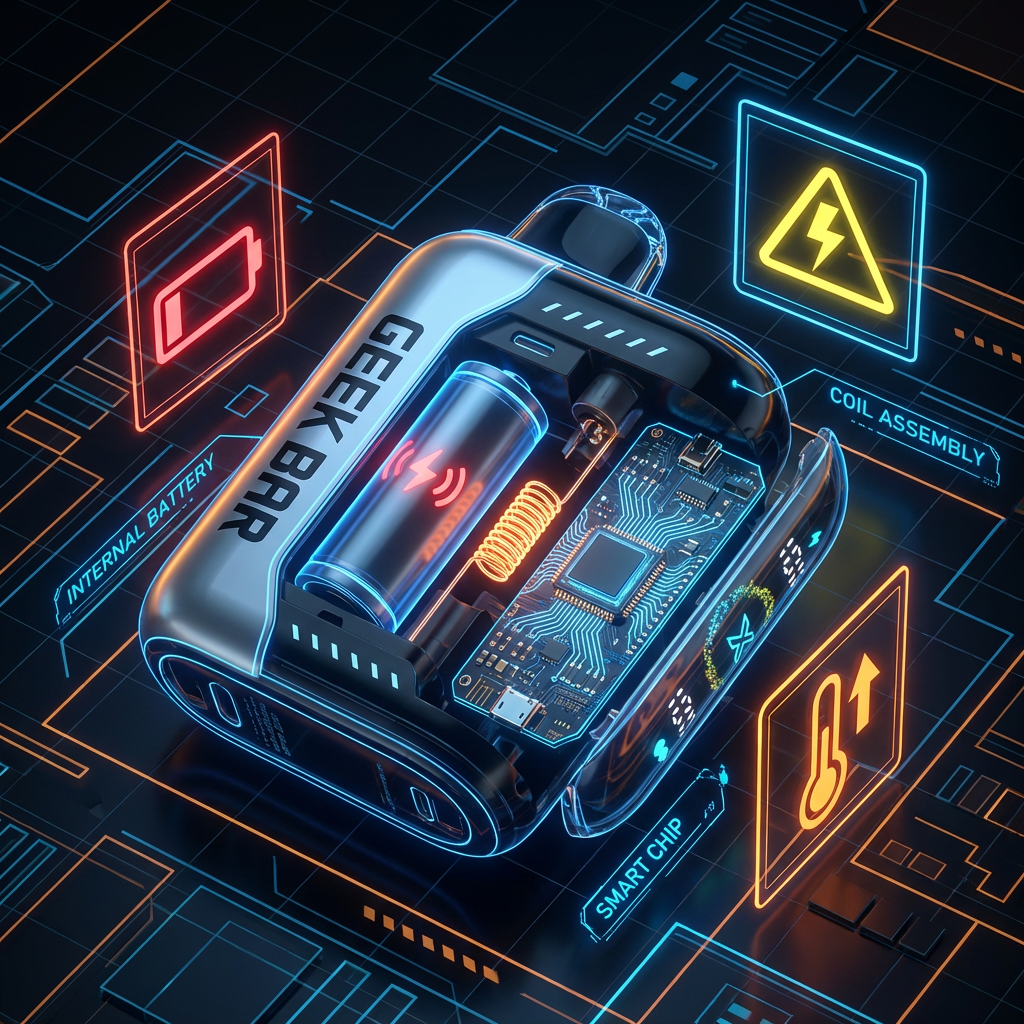
Scenario 1: Blinking Red Light 🔴
Meaning: Low Voltage Protection.
- Your battery is completely dead (0%).
- Fix: Connect to a USB-C charger. The screen should light up and show the current charging percentage.
Scenario 2: Blinking White/Blue while Vaping ⚪
Meaning: Overtime Protection (10-Second Cutoff).
- You inhaled for longer than 10 seconds continuously.
- Fix: This is a safety feature to prevent the device from overheating. Wait 5 seconds and take shorter puffs.
4. Charging Behavior Guide
Many users are confused by how the screen acts during charging. Here is what is normal:
- Plugged In: The screen will stay ON and display the battery percentage climbing (e.g., 55%... 56%... 57%).
- Fully Charged: The screen will read 100% and eventually turn off to save power.
- Time to Full: Approximately 40-50 minutes using a standard 5V/1A adapter.
📺 Video: See the "Star UI" in Action
Want to see the animations live? Watch this official demonstration of the screen interface.
Ready for a high-tech vape?
Master the screen and enjoy the flavor.
Shop Geek Bar Pulse X Collection